How to Start Using WhatsApp Web
To start using the web version, you need the app on your smartphone and an account linked to your phone number. Once you have that, everything is straightforward. Follow these 10 steps:
- Open a web browser on your computer.
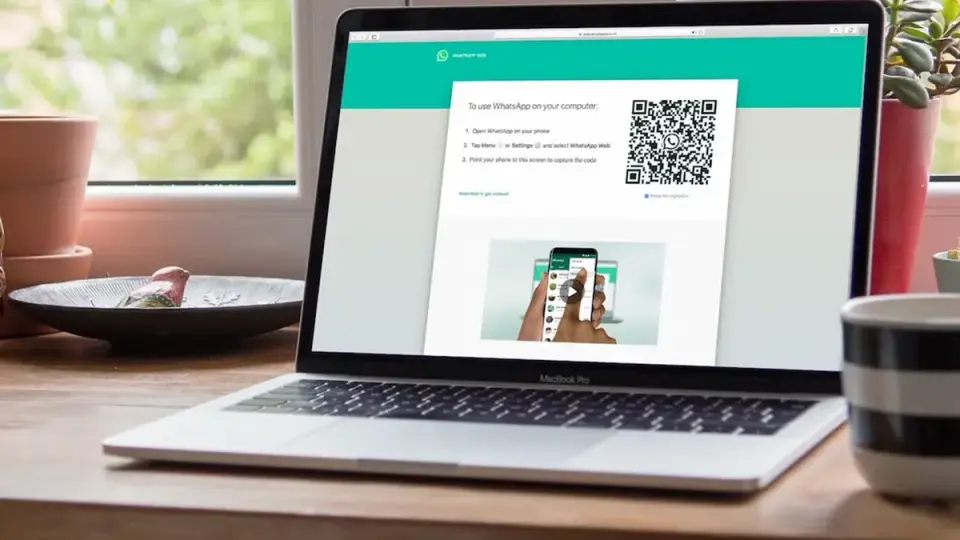
- Enter the URL – https://web.whatsapp.com or find the page via a search engine.
- A login page with a QR code and brief instructions will open.
- Take your mobile phone and open the app.
- Tap the "three dots" icon (also known as the menu) in the top right corner.
- Select "Linked Devices."
- Tap "Link a Device."
- Point your phone’s camera at your computer screen to scan the QR code.
- Wait for the image to scan. It usually happens very quickly.
- Wait until the message "Loading your chats" disappears and the WhatsApp Web interface opens with all your contacts and conversations.
If for some reason you cannot log in using the QR code, there is an option to authorize using your phone number. On the login page, under the instructions, you can select this function. After entering your phone number, a code will appear on the screen, which you need to enter into the app on your smartphone.
Now you have access to your messages and can continue conversations on your new device. This is convenient for business chats or sharing photos since it’s much easier to view them on a larger screen.
How to Use WhatsApp Web for Messaging
Using WhatsApp Web on your computer is free. All features are available immediately after syncing with your smartphone. The interface in both the official app and the web version is nearly identical. For text messages, use the keyboard; for voice messages, use the microphone. To send a document or media file, simply open a chat and drag and drop the file.
How to Send a Text Message in WhatsApp Web
Sending a text message in the web version of the messenger is very simple:
- Log in to WhatsApp Web.
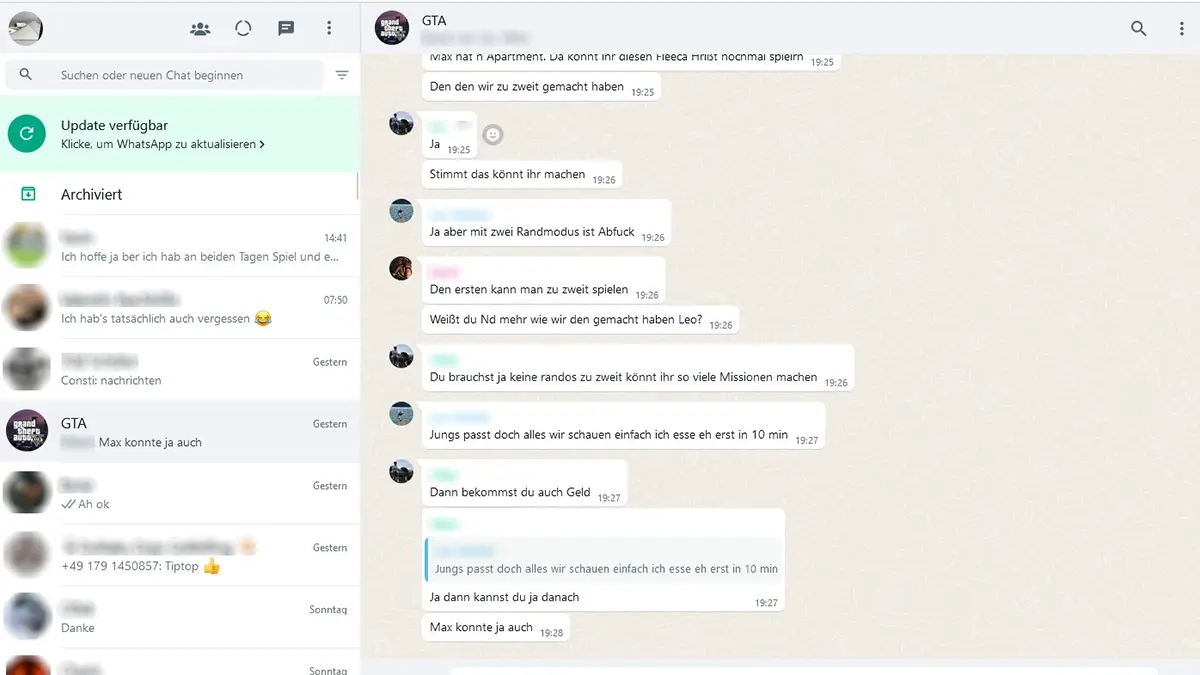
- Click on the desired chat in the window on the left.
- To start a new conversation, click the plus sign, then find your friend in the phonebook.
- Click on the friend's card, and the chat will open on the right side of the screen.
- Click the text input field.
- Type your message. To send, press Enter or the button on the right.
Now your message is sent. The recipient can read it either through the app on their smartphone or via the web version.
How to Use WhatsApp Web for Voice Messages
You can send both text and voice messages in WhatsApp Web via audio recordings. A voice message is useful if you don't have time to type a long text. It uses the microphone built into your laptop or webcam. Here's how to send a voice message step by step:
- Open the desired chat or start a conversation with a new friend.
- In the bottom right corner, there's a microphone icon. Click on it.
- Recording will begin immediately. Speak your message and send it using the checkmark icon. If you want to cancel the recording, click on the red cross.
- It’s very simple. However, note that WhatsApp Web doesn't have voice typing. If you need written text, you will have to type it yourself.
How to Send Files in WhatsApp Web
You can send not only text and voice messages but also files in WhatsApp Web. Here's how to do it:
- Open the desired chat or group.
- Click the "+" icon next to the text input box, near the emoji icon.
- Choose the type of media: document, photo, video, etc., from the buttons that appear.
- A file explorer will open. Select the necessary files and click "Open."
- Confirm sending using the send button in the bottom right corner.
By the way, you can also use the camera to take and send a photo. However, you can’t record a video at the moment. You can only send a ready-made video from your computer. Any files can simply be dragged into the send window.
How to Make a Call or Video Call in WhatsApp Web
In the mobile app, you can not only send messages but also make calls. However, is this possible with the web version? Unfortunately, no. You can't make voice or video calls via WhatsApp Web at the moment. Instead, you can:
- Send and receive text messages.
- Record and send voice messages.
- Use emojis, animations, and stickers.
- Send and receive documents, files, photos, and videos.
If you really want to make calls via WhatsApp on your computer, you will need to install the official desktop app. It's also free and convenient.
How to Use WhatsApp Web – Video
For a better understanding of how to use WhatsApp Web, watch a professional tutorial:
Conclusion
WhatsApp Web is a web version of the famous messenger that allows you to exchange messages, including voice messages, and various files. It's convenient, free, and doesn't require installation. However, the web app doesn't support voice or video calls. This functionality is only available in the full desktop or smartphone apps.